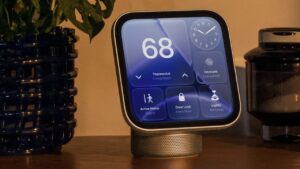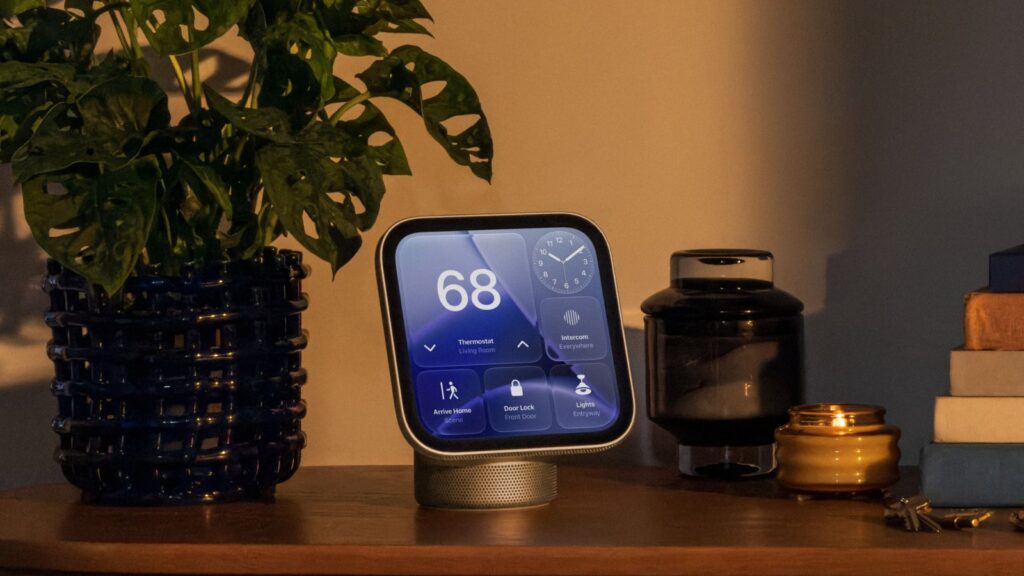
Apple’s HomeView came out today, and we’re finally learning all the little details about the new hub. We’ve put together a list of tidbits for those setting up a HomeView or thinking about getting one.
Sunglasses
Apple says HomeView probably won’t recognize you if your face is covered, even when you’re wearing sunglasses. If HomeView doesn’t identify you, Apple suggests removing anything that might block the camera from seeing your face.
The HomeView screen must be angled towards your face, you must be centered in the frame and closer to the camera if other people are nearby, and HomeView cannot be blocked by protruding shelves and cabinets. Apple says HomeView requires frontal, uniform light.
Mirror
There’s a “mirror” in the HomeView Control Center that lets you use the camera to see yourself. There is an option to activate a side light for face lighting, along with 1x and 2x zoom.
Guest controls
The HomeView owner has more options that guests can access.
- You can turn Safari on or off, or block adult websites.
- By default, guests can use Siri for general knowledge, writing help, and math help, but Siri features can be turned off.
- Explicit content can be turned on or off.
- There is an option to choose which Apple Music subscription provides music for an unrecognized user.
Wi-Fi/Cellular
HomeView authenticates people through facial recognition and by ensuring their iOS device is nearby, recently unlocked, and on the same Wi-Fi network as HomeView. If there is a Wi-Fi outage, Apple says the mobile can also be used to unlock personal content as long as they are in the same location and have recently been on the Wi-Fi network.
Off timer
You can set a sleep timer on HomeView to pause any media playing when the timer goes off.
No buttons
There is no button to turn HomeView on or off or restart it. It can be restarted from the Settings app or by unplugging it briefly.
Access
You can access websites and apps using your iPhone, similar to how Apple TV works.
Notifications
HomeView only has notifications for phone calls and home devices, with an option to turn on critical notifications. There are no other settings or notification options.
Liquid glass
The transparency of the Liquid Glass interface can be adjusted from transparent to opaque like on iPhone, iPad and Mac.
Blocks of personal data
If someone repeatedly attempts to access personal content on HomeView that requires authentication, facial recognition via the camera is disabled and you will need to prove identity with a registered device.