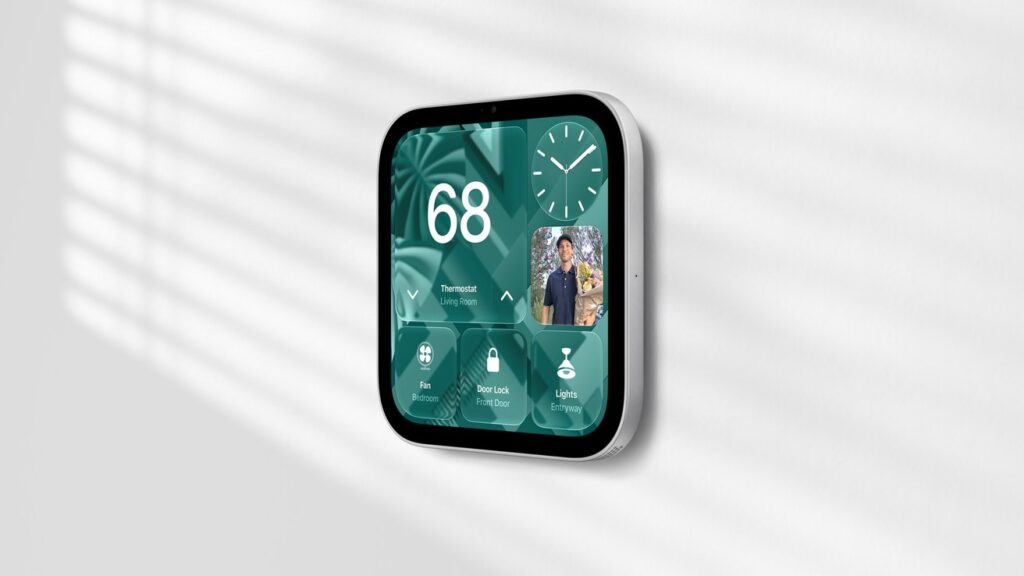
We’ve learned some nifty details since Apple’s HomeView launch, including how security camera tiles work in real time, how photo albums display, and how to mount the display where a light switch used to be.
Apple introduced HomeView on October 13, but some of its smaller features deserve a closer look. In addition to Siri’s hardware and AI features covered in our hands-on HomeView tutorial, details from the launch demonstrations reveal more about how the device works in the home.
AppleInsiderAndrew O’Hara of got to try HomeView during Apple’s launch event. Its demonstrations revealed several small details about how the display handles security cameras, shared photos, recipes, and smart home controls.
From animated faces to recipe management and security cameras, there’s so much more to Apple’s seven-inch display.
HomeView can display nine real-time security cameras simultaneously
The home camera dial can display up to nine simultaneous live video feeds rather than static camera snapshots. Owners can monitor multiple rooms, entrances or outdoor areas without switching between cameras.
During Apple’s demonstrations, the feeds responded with little noticeable delay. This was a controlled environment, so we’ll have to see if performance holds up with different home networks and camera setups.
Although many of the new accessories in the Apple Home Collection support Matter, the cameras do not use the standard, at least for now.
Apple representatives explained to us that the current Matter camera specifications have shortcomings in terms of reliability and security. Matter has supported cameras since version 1.5, but Apple has chosen a different approach for its new models.
Shared photo albums make HomeView a digital photo frame
The face of HomeView photos isn’t limited to images stored in someone’s personal library. It also supports shared albums, allowing other people to contribute photos that can appear on the display.
For example, someone might give HomeView to a parent or grandparent, select a shared album, and continue adding pictures from their iPhone. The recipient will not need to manually transfer each new photo to the display.
HomeView can replace a dedicated digital photo frame, especially for families who already use iCloud shared albums. Owners also get smart home controls and other features without needing a separate device on the counter.
Flow reacts to movement, while Fade draws inspiration from a sundial
Some of HomeView’s faces do more than just display a clock or decorative animation. The Flow watch face, borrowed from the Apple Watch, uses the HomeView camera to respond to movement in the room.
On Apple Watch, Flow reacts to the movement of the wearer’s wrist. HomeView adapts this idea to a fixed display, changing the animation as people move nearby.
Another face, called Fade, takes inspiration from a sundial. The clock numbers gradually fade and disappear depending on the time, changing the look of the display throughout the day.
Both faces give HomeView something to show off when no one is actively using the smart home controls.
Safari recipes can be pinned for later
HomeView’s recipe capabilities aren’t limited to Apple News content. Recipes found through Safari can also be opened in the device’s cooking interface, giving owners access to instructions from websites they already use.
Supported recipes appear as step-by-step instructions, and Siri can advance to the next step with a voice command. Cooks can follow along without touching the display with messy hands.
Recipes can also be pinned for future use, making it easy to return to favorite dishes without having to search for the original website again.
For now, Safari and Apple News are the supported paths for bringing recipes into HomeView. Dedicated integrations with third-party recipe apps remain a separate issue.
HomeView can be wired where there used to be a light switch
We’ve been speculating about this since the debut. The wall-mounted model of HomeView does not necessarily require a visible power cord.
With the AC Wired Schneider Home Power Mount accessory, you can connect directly to your home’s electrical wiring via a standard one-gang wall box.
HomeView can be installed where a conventional light switch was previously located, provided the wiring is suitable.
A $79.95 stand provides continuous power over USB-C and keeps the connection hidden behind the display. It also means HomeView can serve as a permanent control panel near an entryway, where someone would normally reach for a light switch.
There are some electrical considerations, however. Existing switch wiring is not automatically suitable for powering HomeView, and replacing a switch also requires accounting for the previously controlled lighting circuit.
Apple recommends a licensed electrician for wired support. We are less sure.
For homes with proper wiring, the result could be a cleaner installation than mounting a tablet and running a charging cable along the wall.
HomeView arrives in November
HomeView starts at $299, with both tabletop and wall-mounted models available for pre-order ahead of the November 13 release. The wall-mount version requires a separate mounting accessory, but we can’t wait to see what the 3D printing community can accomplish.
The launch demonstrations provide a first look at how these features work, but their day-to-day usefulness will depend on HomeView’s performance once installed in real homes.