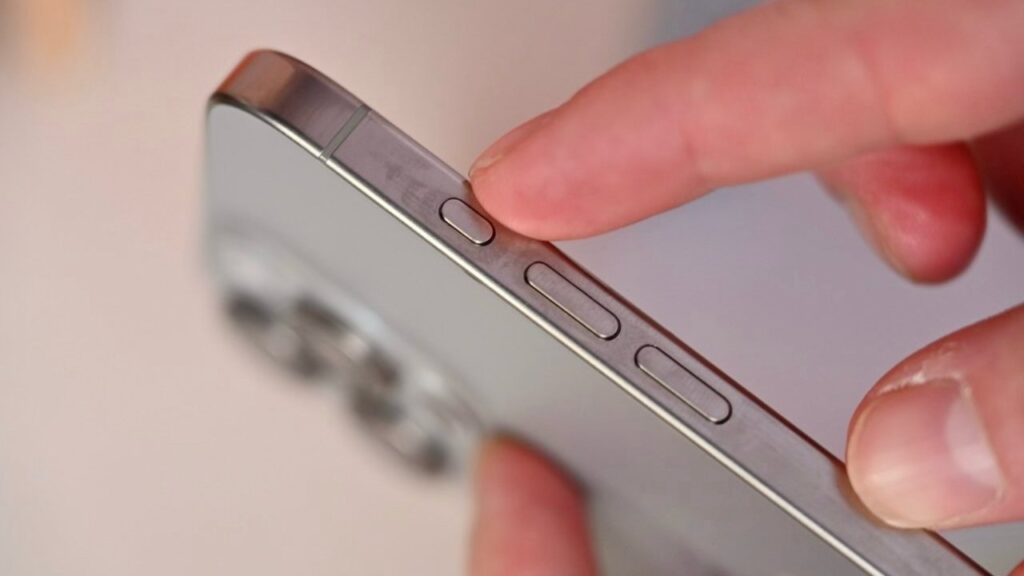
The iPhone Duo famously lacks Face ID, but it also lost the action button. If this is important to you, it matters a lot, but there is something you can do.
Not to keep you hanging, the solution to losing the action button on the iPhone Duo is to create an almost equivalent one. You can replace one of the regular iPhone lock screen icons with a control or shortcut that mimics the action button.
True, the actual action button still has the same peculiar design it had in 2023, where pressing it does nothing other than bring up a warning telling you to press longer. You can’t emulate it with a shortcut or control, but you can do just about everything else.
The basic method
Action button emulation varies slightly depending on what you want it to do, but in any case you start with this:
- Press and hold on the iPhone lock screen to change it
- Tap the Customize button that appears
- Tap the minus sign next to the camera icon in the bottom right
- Now tap on the plus sign that appears where that icon was
- Choose from the list of controls displayed
- Tap the Done button
- Tap in the center of the screen to abandon editing
The key part here is which control you choose. It can be something specific like activating a Focus mode or running a shortcut.
LR: Press on lock screen to customize; replace the camera icon; choose a new control instead.
Whatever you choose, when you pick up your iPhone, a single tap on the lock screen icon at the bottom right will perform the action you’ve chosen.
You could easily choose the bottom left icon instead of the right one. But by default the right icon opens the camera, and you can also do this by sliding the lock screen to the side or pressing the Camera Control button.
There are also other spaces on the lock screen where you can place widgets, but the camera icon still seems the most expendable.
If you do that and choose a control bar that runs a shortcut, you’re done. You have your own fake action button, as best as you can on the iPhone Duo or any iPhone.
Additionally, this on-screen button will display the icon for whatever control you have chosen. However, if you have performed a shortcut, the button will only show the generic shortcut icon.
Shortcuts are better
Just like with the real action button, you get more benefits by having it perform a shortcut. This way you have one button that does many things, such as turning on the flashlight, activating a Focus mode, and running an app.
LR: Opening the Shortcuts app, saying what you want to do, seeing Shortcuts create what you need.
Or, more usefully, you can have a shortcut act as a menu for any or all of the other shortcuts you have.
Now, from iOS 27 onward, it’s easier than ever to tell your iPhone what you want to happen. Because you literally say it:
- Open the Shortcuts app
- Tap the plus sign
- Write a sentence that describes what you want
That sentence could be, for example, “Show me a menu with several shortcuts I can perform.” This is a terrible idea if you have, say, 710 shortcuts, but great if you have 11.
If you have a lot of shortcuts, though, it means you’re used to creating them. So now you can create one that, for example, shows all the links you placed in a folder.
A simple shortcut that opens a folder of other shortcuts and presents them in a menu.
Or I make it so that by pressing my actual action button or this new one on the screen, it changes depending on where I am. It’s actually the same shortcut, but first it checks which Wi-Fi network I’m on and gives me different options depending on the result.
Limitations
There’s nothing the action button does that you can’t replicate with a control or shortcut. But this is still emulating a physical button with an on-screen one, and there’s a difference.
You won’t be able, for example, to pick up your iPhone and press the button without looking.
But since the iPhone Duo doesn’t have an action button, this is the best you can do.